Physical Address
304 North Cardinal St.
Dorchester Center, MA 02124
Physical Address
304 North Cardinal St.
Dorchester Center, MA 02124

Setting up reliable disaster recovery and maintaining data continuity have become essential for any team running Elasticsearch in production. When one cluster goes down or needs maintenance, you still want your applications to keep running without missing a beat. That’s where Cross-Cluster Replication (CCR) comes in.
If you’ve ever wished you could keep an up-to-date copy of your indices in another region or even in an entirely different data center, CCR makes it possible with very little manual effort. It continuously copies your data from a leader cluster to a follower cluster, so the moment something goes wrong, you already have a live, ready-to-use backup.
In this tutorial, we’ll walk through the exact steps needed to set up Cross-Cluster Replication on Elasticsearch, explain the key settings you need to know, and point out a few practical tips that can save you from common mistakes. Whether you’re preparing for a real DR setup or just exploring Elasticsearch’s scaling options, this guide will help you get CCR up and running smoothly.
When planning a resilient Elasticsearch deployment, it’s important to choose the right architecture to meet your disaster-recovery and high-availability requirements. With Elasticsearch Cross-Cluster Replication, you have flexibility in how you replicate and protect your data across clusters. According to the official docs, here are the architectures you can use:
Single disaster recovery datacenter — A simple, one-way replication where data is copied from your primary (production) cluster to a single backup datacenter.
Multiple disaster recovery datacenters — Data from the primary cluster is replicated to two or more disaster-recovery datacenters, increasing redundancy and availability.
Chained replication — Data flows from Cluster A (leader) → Cluster B (follower) → Cluster C (follower of B), forming a chain of replication across multiple datacenters.
Bi-directional replication — Both clusters act as leader and follower simultaneously, allowing write and read operations in either cluster and automatic synchronization across them.
In this article, we will focus on the single, uni-directional disaster recovery datacenter architecture, the most straightforward and widely used approach when setting up Elasticsearch Cross-Cluster Replication.
To complete this tutorial, you will need two Elasticsearch cluster so that you configure 1 cluster as the leader and the other cluster as follower. To setup Elastic cluster you can follow the steps here.
In my environment I have a 3 node cluster named “my-application” which will contain the leader index.
root@akhil-node1:~# curl --cacert /etc/elasticsearch/certs/http_ca.crt -u elastic:$PASS https://localhost:9200/_cluster/health?pretty
{
  "cluster_name" : "my-application",
  "status" : "green",
  "timed_out" : false,
  "number_of_nodes" : 3,
  "number_of_data_nodes" : 3,
  "active_primary_shards" : 34,
  "active_shards" : 68,
  "relocating_shards" : 0,
  "initializing_shards" : 0,
  "unassigned_shards" : 0,
  "unassigned_primary_shards" : 0,
  "delayed_unassigned_shards" : 0,
  "number_of_pending_tasks" : 0,
  "number_of_in_flight_fetch" : 0,
  "task_max_waiting_in_queue_millis" : 0,
  "active_shards_percent_as_number" : 100.0
}
root@akhil-node1:~#
I also have a single node cluster by the name “local-cluster” which will replicate index from “my-application” cluster.
root@akhil-node4:~# curl --cacert /etc/elasticsearch/certs/http_ca.crt -u elastic:$PASS https://localhost:9200/_cluster/health?pretty
{
  "cluster_name" : "local-cluster",
  "status" : "green",
  "timed_out" : false,
  "number_of_nodes" : 1,
  "number_of_data_nodes" : 1,
  "active_primary_shards" : 34,
  "active_shards" : 34,
  "relocating_shards" : 0,
  "initializing_shards" : 0,
  "unassigned_shards" : 0,
  "unassigned_primary_shards" : 0,
  "delayed_unassigned_shards" : 0,
  "number_of_pending_tasks" : 0,
  "number_of_in_flight_fetch" : 0,
  "task_max_waiting_in_queue_millis" : 0,
  "active_shards_percent_as_number" : 100.0
}
root@akhil-node4:~#For this walkthrough, the “local-cluster” will act as the follower, while the “my-application” cluster will serve as the leader. To make Elasticsearch Cross-Cluster Replication work between these two environments, the follower cluster needs to recognize the leader as a remote cluster. We’ll be using API key–based authentication for this, as it offers a secure and straightforward way to establish trust between clusters.
Before you add the remote cluster configuration, make sure both environments meet the following prerequisites:
elasticsearch.yml file:xpack.security.enabled: truePOST /_license/start_trial?acknowledge=true&prettyYou can then run GET /_license to check the licence details and you will get an output similar to below:
{
  "license": {
    "status": "active",
    "uid": "60c076cd-f815-41c1-a0c0-45ec94ccebd1",
    "type": "trial",
    "issue_date": "2025-12-07T11:30:25.059Z",
    "issue_date_in_millis": 1765107025059,
    "expiry_date": "2026-01-06T11:30:25.059Z",
    "expiry_date_in_millis": 1767699025059,
    "max_nodes": 1000,
    "max_resource_units": null,
    "issued_to": "my-application",
    "issuer": "elasticsearch",
    "start_date_in_millis": -1
  }
}
Once these requirements are in place, you can safely proceed with configuring the leader cluster as a remote cluster on the follower and move on to enabling replication.
1. Add the following settings to the elasticsearch.yml on all nodes on remote cluster:
remote_cluster_server.enabled: true
remote_cluster.host: 0.0.0.0
remote_cluster.port: 9443
remote_cluster_server.enabled: true When enabled, the node starts an RCS listener that allows other clusters to connect to it using the Remote Cluster Protocol.
remote_cluster.host: 0.0.0.0 0.0.0.0 means “listen on all network interfaces”
remote_cluster.port: 9443 The follower cluster will connect to this port when setting up remote cluster connections.
2. Next, generate a certificate authority (CA) and a server certificate/key pair. On one of the nodes of the remote cluster, from the Elasticsearch bin directory on one of the remote cluster nodes:
./elasticsearch-certutil ca --pem --out=cross-cluster-ca.zip --pass qwertyThis command uses the Elasticsearch certutil tool to generate a Certificate Authority (CA) that will later be used to sign certificates for remote-cluster communication (CCR/CCS). It will also set “qwerty” as a password on the CA private key (ca.key) and saves the CA as a ZIP file (cross-cluster-ca.zip)
You can replace “qwerty” with a password of your choice. In production its necessary to set stronger password.
3. Next unzip the generated cross-cluster-ca.zip file. This compressed file contains the following content:
/ca
|_ ca.crt
|_ ca.key
4. You can then use the below command to generate a certificate and private key pair for the nodes in the remote cluster:
./bin/elasticsearch-certutil cert --out=cross-cluster.p12 --pass=CERT_PASSWORD --ca-cert=ca/ca.crt --ca-key=ca/ca.key --ca-pass=CA_PASSWORD --dns=<CLUSTER_FQDN> --ip=192.0.2.1If the remote cluster has multiple nodes, you can either:
Create a single wildcard certificate for all nodes; or, create separate certificates for each node either manually or in batch with the silent mode.
Since my remote cluster we have 3 nodes I tweaked the above command like below to generate a wild card SSL at once for all nodes:
./bin/elasticsearch-certutil cert --out=cross-cluster.p12 --pass=qwerty --ca-cert=ca/ca.crt --ca-key=ca/ca.key --ca-pass=qwerty --dns=node-1 --dns=node-2 --dns=node-3 --ip=10.128.0.84 --ip=10.128.0.194 --ip=10.128.0.195The command generates a TLS certificate (in cross-cluster.p12) for Elasticsearch nodes, signed by your custom CA that we generated above.
It includes multiple hostnames and IP addresses of all my 3 nodes so the certificate is valid for all those hosts.
This certificate is then used to securely enable Remote Cluster communication (CCR/CCS) over TLS.
5. We can then copy the generated TLS certificate to the certs directly of Elasticsearch cluster by running below command:
cp cross-cluster.p12 /etc/elasticsearch/certs/6. We can also copy the cross-cluster.p12 files to the “/etc/elasticsearch/certs/” directory on the other two nodes as well. Once done add the following settings to elasticsearch.yml on all 3 nodes.
xpack.security.remote_cluster_server.ssl.enabled: true
xpack.security.remote_cluster_server.ssl.keystore.path: certs/cross-cluster.p12
7. The run the below command to add the SSL keystore password to the Elasticsearch keystore on all 3 nodes:
./bin/elasticsearch-keystore add xpack.security.remote_cluster_server.ssl.keystore.secure_passwordIt will prompt you to enter the password. In this case the password we configured above was “qwerty”.
8. Once done we can restart the Elasticsearch service on each node one by one using below command for the above settings to be applied.
sudo systemctl restart elasticsearch9. Once done, on the remote cluster, generate a cross-cluster API key that provides access to the indices you want to use for cross-cluster search or cross-cluster replication. You can use the Create Cross-Cluster API key API or Kibana.
I created the API key from Kibana -> Stack Management -> Security -> API Keys -> Create API key as shown in below image:
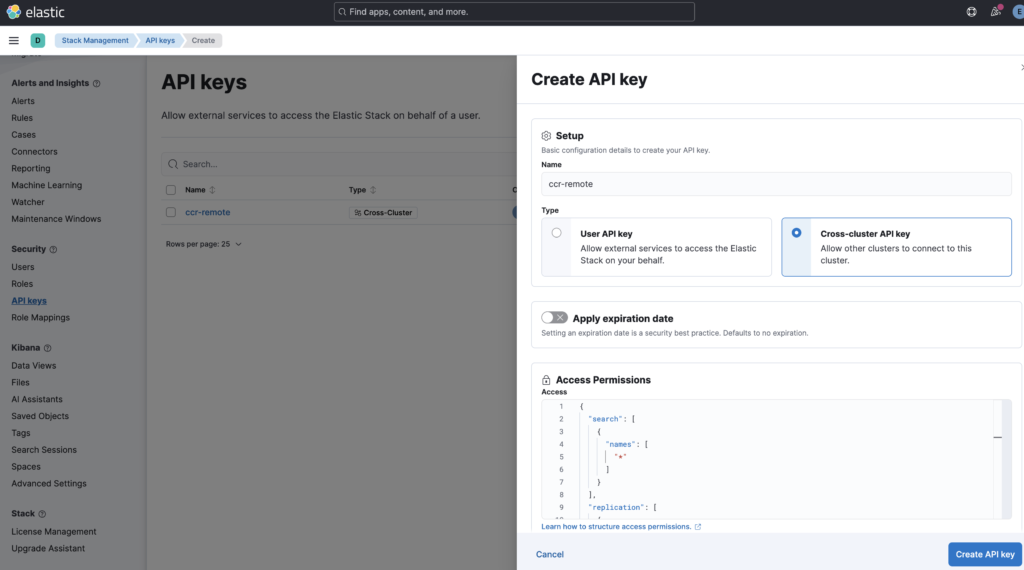
I have used the default access permission as below while creating the API key:
{
  "search": [
    {
      "names": [
        "*"
      ]
    }
  ],
  "replication": [
    {
      "names": [
        "*"
      ]
    }
  ]
}
This permission block allows the follower cluster to:
✔ Perform cross-cluster search on all indices
✔ Perform cross-cluster replication on all indices
In short, it grants full search + replication access across the entire leader cluster.
10. Copy the encoded key (encoded in the response) to a safe location. You will need it to connect to the remote cluster later.
1. On every node on local cluster copy the ca.crt file generated on the remote cluster earlier into the /etc/elasticsearch/certs/ directory, renaming the file remote-cluster-ca.crt.
2. Then add following configuration to elasticsearch.yml:
xpack.security.remote_cluster_client.ssl.enabled: true
xpack.security.remote_cluster_client.ssl.certificate_authorities: [ "/etc/elasticsearch/certs/remote-ca.crt" ]
These settings turn on TLS for the Remote Cluster Server (port 9443) and configure Elasticsearch to use the cross-cluster.p12 certificate for secure, authenticated communication between clusters during cross-cluster replication or search.
Please Note: If the remote cluster uses a publicly trusted certificate, don’t include the certificate_authorities setting. This example assumes the remote is using the private certificates created earlier, which require the CA to be added.
3. Add the cross-cluster API key, created on the remote cluster earlier, to the keystore:
./bin/elasticsearch-keystore add cluster.remote.ALIAS.credentials
Replace ALIAS with the same name that you will use to create the remote cluster entry later. When prompted, enter the encoded cross-cluster API key created on the remote cluster earlier.
4. Restart the Elasticsearch service on local cluster to load changes to the keystore and settings by running below command
sudo systemctl restart elasticsearchTo configure a remote cluster for Elasticsearch Cross-Cluster Replication, you can set everything up directly from Kibana using the Stack Management interface. The process is straightforward and only takes a few steps:
cluster.es.eastus2.staging.azure.foundit.no:9443192.0.2.1:9443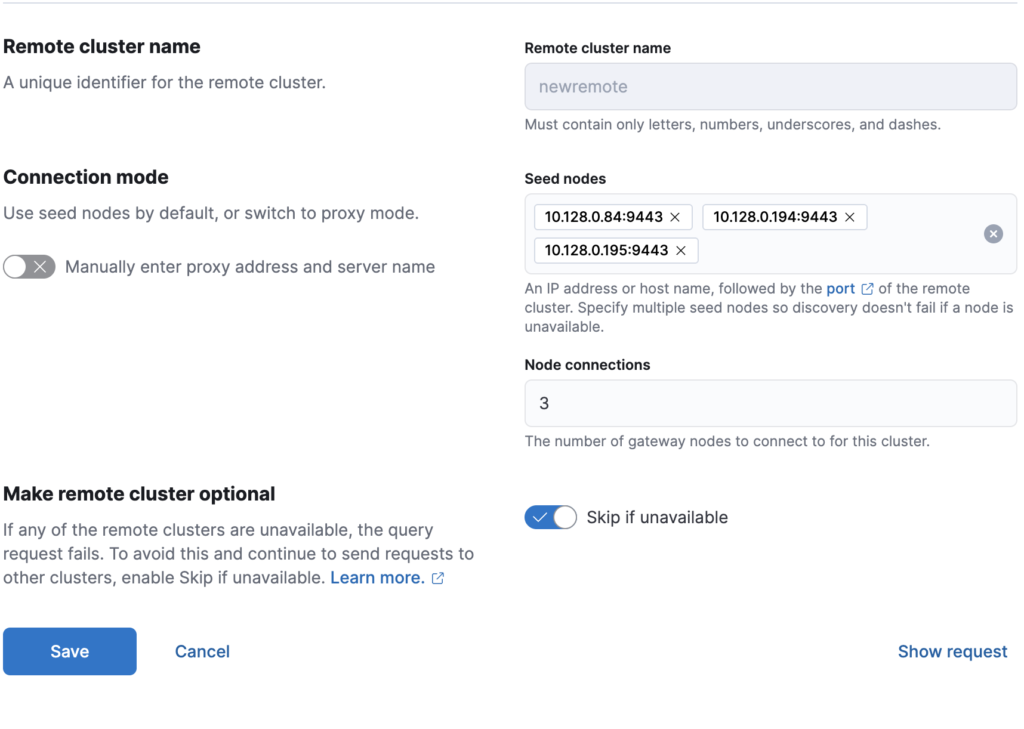
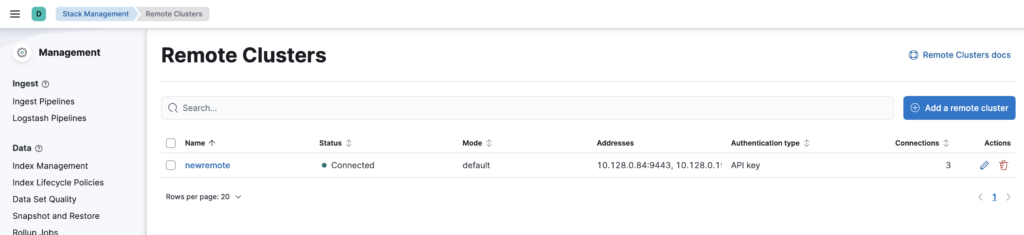
Once these details are saved, Kibana will validate the connection and register the remote cluster, allowing you to continue with the replication setup. If everything goes correctly the remote cluster will show as connected in Kibana UI.
On remote cluster run below command to create an index by the name “testing” and add “hello world” message to it.
POST testing/_doc
{
  "message": "hello world"
}
On local cluster run the below command using Kibana dev tools to create a follower index by the name “testing_follower” and replicate everything from leader index “testing” on remote cluster “newremote“
PUT testing_follower/_ccr/follow
{
  "remote_cluster": "newremote",
  "leader_index": "testing"
}
You can then run the below call on the local cluster Kibana dev tools to see if it has replicated the content from the leader index “testing” on remote cluster “newremote“.
GET testing_follower/_searchIf it shows the “hello world” message like below then the replication is working.
{
  "took": 1,
  "timed_out": false,
  "_shards": {
    "total": 1,
    "successful": 1,
    "skipped": 0,
    "failed": 0
  },
  "hits": {
    "total": {
      "value": 1,
      "relation": "eq"
    },
    "max_score": 1,
    "hits": [
      {
        "_index": "testing_follower",
        "_id": "Hd3R-JoB7d268WmJydqP",
        "_score": 1,
        "_source": {
          "message": "hello world"
        }
      }
    ]
  }
}
You can also run the below command to receive the Cross-Cluster Replication (CCR) status and details for the follower index testing_follower, including replication progress, connection health, and any errors.
GET testing_follower/_ccr/infoYou will see an output like below that shows that the follower index testing_follower is successfully connected to the remote cluster newremote, replicating data from the leader index testing, and is currently active.
It also displays the replication tuning parameters (limits on read/write requests, buffer sizes, retry timing, etc.) that control how CCR operates.
{
  "follower_indices": [
    {
      "follower_index": "testing_follower",
      "remote_cluster": "newremote",
      "leader_index": "testing",
      "status": "active",
      "parameters": {
        "max_read_request_operation_count": 5120,
        "max_write_request_operation_count": 5120,
        "max_outstanding_read_requests": 12,
        "max_outstanding_write_requests": 9,
        "max_read_request_size": "32mb",
        "max_write_request_size": "9223372036854775807b",
        "max_write_buffer_count": 2147483647,
        "max_write_buffer_size": "512mb",
        "max_retry_delay": "500ms",
        "read_poll_timeout": "1m"
      }
    }
  ]
}Elasticsearch Cross-Cluster Replication provides a powerful and reliable way to protect your data and ensure business continuity when running Elasticsearch in production. By maintaining a live, continuously updated copy of your indices on a separate cluster, CCR helps eliminate single points of failure and gives teams the confidence to handle maintenance, outages, or unexpected issues without downtime or data loss.
With the steps outlined in this guide, you can set up a secure and fully functional CCR environment, from enabling remote cluster communication to creating leader and follower indices and validating replication in real time. Whether you are building a disaster recovery strategy or simply looking to improve cluster availability, Elasticsearch Cross-Cluster Replication delivers a flexible, scalable solution that can grow with your infrastructure.
As your deployment evolves, you can expand on this foundation with more advanced replication topologies or tighter security controls, but even a basic uni-directional setup can dramatically improve resilience. When data matters, having Elasticsearch Cross-Cluster Replication in place is one of the best investments you can make for long-term reliability and peace of mind.